Melhor gerador de tabelas Markdown: converta Excel, CSV e JSON em GFM rapidamente
Resumo rápido
- Precisa transformar uma planilha, CSV ou arquivo JSON em uma tabela Markdown limpa? Veja as melhores ferramentas visuais e em linha de comando para converter dados em GFM.
- Precisa transformar uma planilha, CSV ou arquivo JSON em uma tabela Markdown limpa?
- Principais ferramentas em um resumo
Processo editorial
Revisado por SectoJoy e publicado em 21 de junho de 2026. Atualizamos este artigo quando os detalhes do produto, exemplos ou guia da ferramenta mudam. Última atualização: 21 de junho de 2026.
SectoJoy
Sou um desenvolvedor independente que cria aplicativos iOS e web, focado em produtos SaaS práticos. Tenho especialização em SEO com IA, explorando constantemente como tecnologias inteligentes podem impulsionar crescimento sustentável e eficiência.
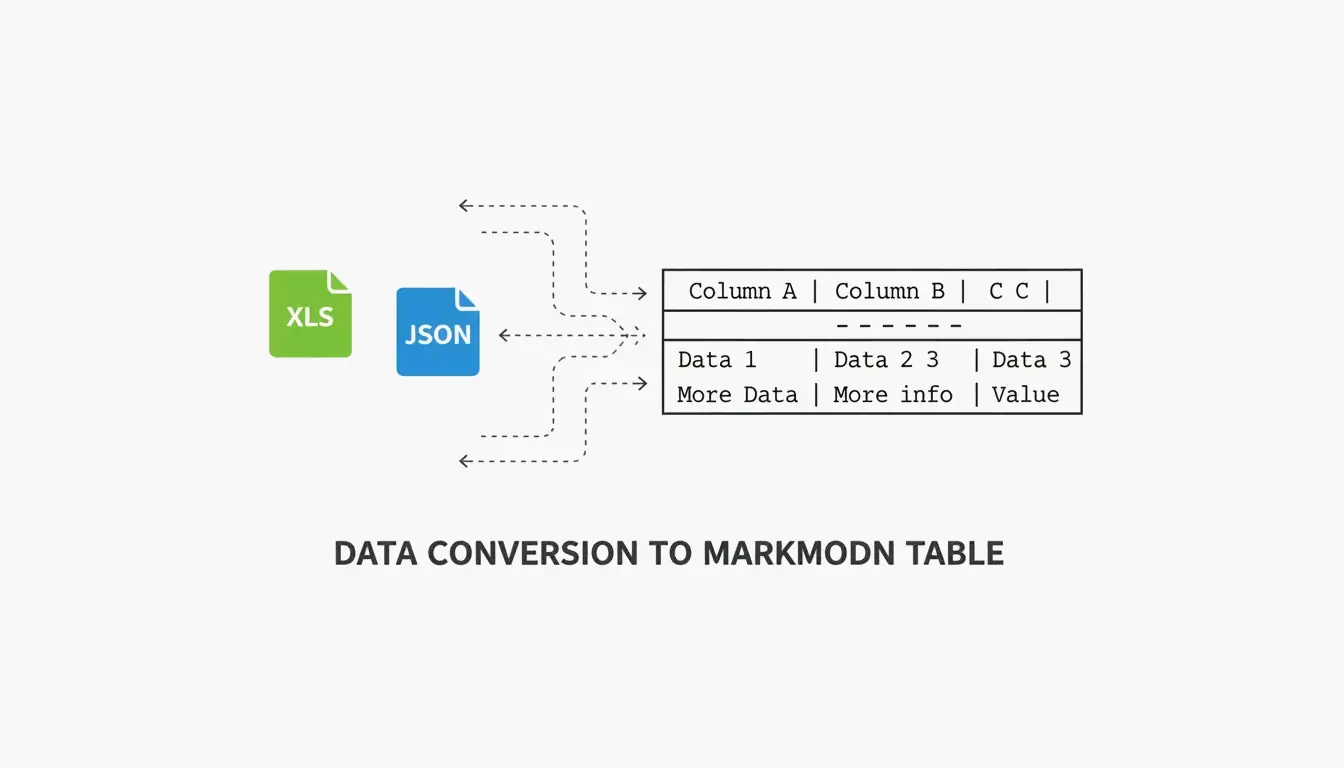
Precisa transformar uma planilha, CSV ou arquivo JSON em uma tabela Markdown limpa? Em 2026, o processo é simples — a ferramenta certa depende de você fazer uma conversão rápida e pontual ou automatizar a documentação em larga escala.
Este guia reúne as melhores ferramentas para cada cenário: editores visuais para trabalho manual, ferramentas de CLI para automação e integração com CI/CD para manter a documentação sincronizada com o seu código.
Principais ferramentas em um resumo
| Ferramenta | Ideal para | Tipo | Principal diferencial |
|---|---|---|---|
| TableGenerator.com | Edições visuais rápidas | Web (client-side) | Editor em grade, controles de alinhamento |
| AnywayData | Arquivos JSON complexos | Web / biblioteca | Achata estruturas aninhadas, análise via AST |
| MarkItDown (Microsoft) | Automação de Excel/Word | CLI em Python | Preserva cabeçalhos e grades de tabelas de arquivos Office |
| Pandoc | Conversão entre múltiplos formatos | CLI | Suporta dezenas de formatos, estável em escala |
| EaseCloud | Excel → GFM | Web | Conversor simples via navegador |
| GoConverter | Excel → GFM | Web | Conversão rápida com opções de alinhamento |
De acordo com DasRoot (2026), as ferramentas modernas de Markdown conseguem processar 15–30 tabelas por segundo em conjuntos de dados de tamanho médio — e as melhores usam processamento no lado do cliente, o que significa que seus dados nunca saem do navegador.
Por que a conformidade com GFM importa
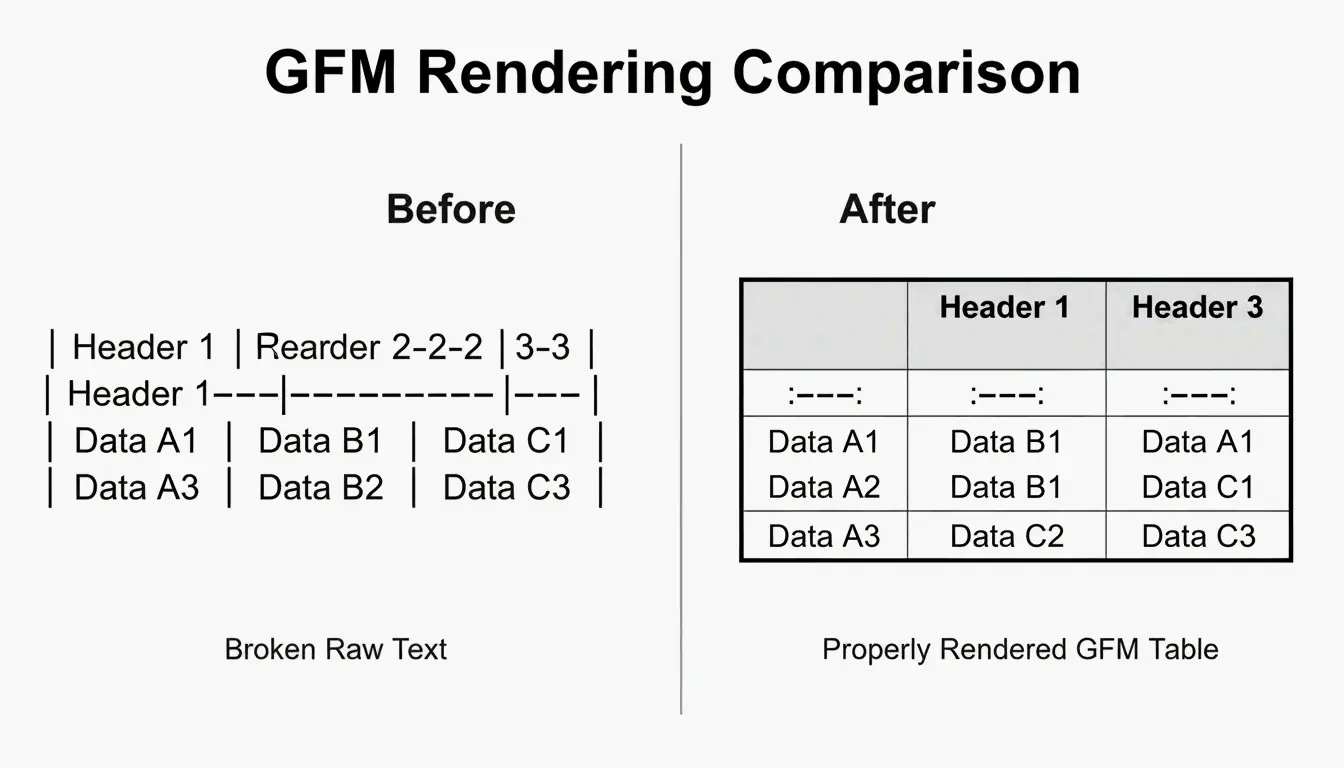
O GitHub Flavored Markdown (GFM) é o dialeto específico usado por GitHub, GitLab e Discord. A especificação original do Markdown não suportava tabelas — foi o GFM que adicionou a conhecida sintaxe de “pipes e traços”. Um gerador compatível com GFM garante que suas tabelas sejam renderizadas corretamente, com cabeçalhos em negrito e colunas alinhadas, em vez de aparecerem como texto puro.
Como converter Excel e CSV para GFM
O processo tem duas etapas:
- Exportar para CSV — Salve seu arquivo do Excel ou Google Sheets como CSV. Isso remove a formatação pesada e preserva a grade de dados.
- Converter — Use uma ferramenta via navegador como a EaseCloud ou a GoConverter para gerar o código GFM.
Alinhamento de colunas
O GFM controla o alinhamento pela linha separadora (logo abaixo do cabeçalho):
| Sintaxe | Alinhamento |
|---|---|
:--- |
Alinhado à esquerda (padrão) |
---: |
Alinhado à direita |
:---: |
Centralizado |
Escapar caracteres pipe
O Markdown usa | para marcar as bordas das colunas. Se seus dados contiverem um pipe (em um trecho de código ou fórmula, por exemplo), ele vai quebrar a tabela. Escape-o com:
- Entidade HTML:
| - Barra invertida:
\| - Backticks de código:
`|`
Lidando com grandes conjuntos de dados (100+ rows)
Para conjuntos com mais de 100 linhas, editores visuais baseados na web podem ficar lentos. Conversores modernos usam análise incremental para se manterem responsivos. De acordo com a AnywayData, o uso de “lógica de dados combinatória em pares” pode reduzir os casos de teste necessários em 90–99%, o que ajuda na documentação de configurações complexas.
Para conjuntos de dados realmente grandes, considere dividir em várias tabelas ou disponibilizar um link para download do CSV junto à versão em Markdown.
Convertendo JSON em GFM: achatando dados aninhados
JSON é hierárquico — dados aninhados como bonecas russas. Tabelas em Markdown são grades bidimensionais planas. A conversão exige lógica de achatamento:
user.address.city → "User Address City" (single column header)
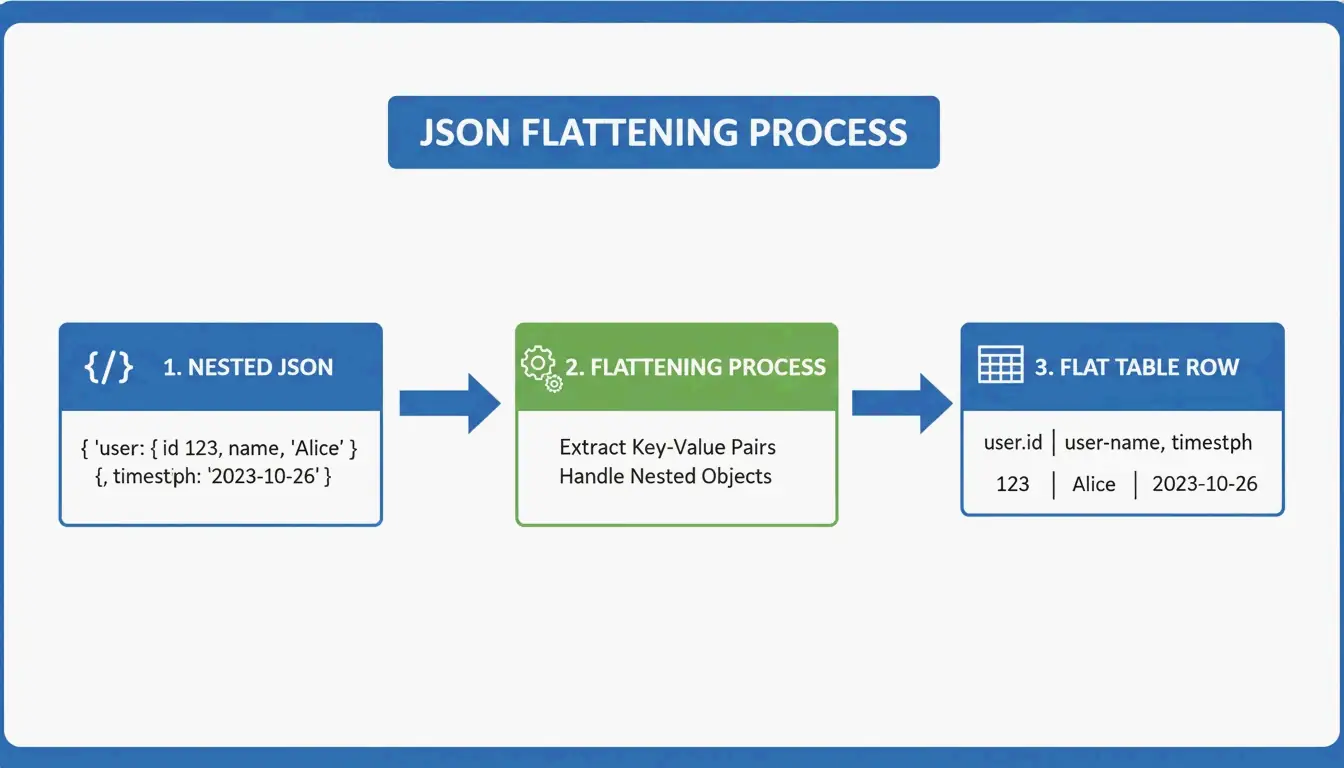
O Grid Table Editor do AnywayData se destaca aqui — ele permite importar JSON e controlar manualmente como as camadas aninhadas são achatadas. A qualidade da conversão depende de a ferramenta usar construção baseada em AST (Abstract Syntax Tree) em vez de simples correspondência de padrões de texto. Parsers baseados em AST constroem um mapa lógico da estrutura dos dados, lidando com aninhamentos mais profundos e esquemas inconsistentes de forma muito mais precisa.
Automatizando com CI/CD
Para equipes de engenharia, converter manualmente é perda de tempo. Integrar a geração de tabelas ao seu CI/CD pipeline mantém os arquivos README atualizados automaticamente:
- Converta respostas de API JSON em GFM durante o processo de build
- Trate a documentação como código — ela é atualizada quando seus dados mudam
- Evite o problema comum de informações desatualizadas ou incorretas no seu repositório
Ferramentas como Terraform-docs v0.17.0 (2026) injetam tabelas de recursos diretamente nos arquivos README — o que comprova que ferramentas de CLI costumam superar interfaces web para a documentação de infraestrutura.
MarkItDown vs. Pandoc: qual usar?
| Fator | MarkItDown (Microsoft) | Pandoc |
|---|---|---|
| Otimizado para | Arquivos Office (Excel, Word) | Conversão universal de documentos |
| Variações de Markdown | Foco em GFM | CommonMark, GFM e muitas outras |
| Ideal para | XLSX → tabela do GitHub rápido | Trabalho em CLI com múltiplos formatos e alto volume |
| Última versão | 2026 | 3.9.0.2 (estável) |
| Velocidade | Mais rápido para arquivos Office isolados | Melhor para processamento em lote |
| Use quando | Você precisa converter um arquivo Excel | Você precisa converter entre dezenas de formatos |
Para a maioria dos desenvolvedores, o MarkItDown é mais rápido no caso comum (Excel → tabela do GitHub). O Pandoc é a melhor escolha quando você lida com muitos formatos de documento ou executa conversões em lote em grande escala.
Conclusão
Converter dados em tabelas GFM em 2026 resume-se a volume e fluxo de trabalho:
- Edições pontuais → TableGenerator.com ou AnywayData para controle visual
- Conversões recorrentes de arquivos Office → MarkItDown integrado ao seu fluxo em Python
- Múltiplos formatos ou alto volume → Pandoc para processamento em lote via CLI
- Documentação de infraestrutura → Automação de CI/CD com terraform-docs ou scripts personalizados
O princípio-chave: a documentação deve ser atualizada quando seus dados são atualizados. Automatizar a conversão evita tabelas desatualizadas e mantém a documentação do seu projeto confiável.
Perguntas frequentes
Como escapar caracteres pipe (|) dentro de uma célula de tabela em Markdown?
Use a entidade HTML | em vez do pipe literal. Como alternativa, use uma barra invertida \| se o seu parser de GFM for compatível, ou coloque o conteúdo entre backticks de código. Os três métodos impedem que o pipe seja interpretado como separador de coluna.
O GFM suporta células mescladas ou conteúdo com várias linhas?
Não. O GFM padrão não suporta colspan nem rowspan. Cada célula precisa ser independente. Para conteúdo com várias linhas dentro de uma célula, use tags HTML <br> para forçar quebras de linha mantendo os dados em uma única linha.
Qual a melhor abordagem para conjuntos de dados com mais de 100 linhas?
Evite editores visuais baseados na web (eles ficarão lentos). Use ferramentas de CLI como MarkItDown ou Pandoc. Se a tabela resultante ficar grande demais para uma única página, divida-a em várias tabelas ou forneça um link para um arquivo CSV disponível para download, a fim de manter a legibilidade.
Perguntas frequentes
MarkItDown vs. Pandoc: qual usar?
Fator MarkItDown (Microsoft) Pandoc Otimizado para Arquivos Office (Excel, Word) Conversão universal de documentos Variações de Markdown Foco em GFM CommonMark, GFM e muitas outras Ideal para XLSX → tabela do GitHub rápido Trabalho em CLI com múltiplos formatos e alto volume Última versão 2026 3.9.0.2 (estável) Velocidade Mais rápido para arquivos Office isolados Melhor para processamento em lote Use quando Você precisa converter um arquivo Excel Você precisa converter entre dezenas de formatos Para a maioria dos desenvolvedores, o MarkItDown é mais rápido no caso comum (Excel → tabela do GitHub). O Pandoc é a melhor escolha quando você lida com muitos formatos de documento ou executa conversões em lote em grande escala.
Como escapar caracteres pipe (|) dentro de uma célula de tabela em Markdown?
Use a entidade HTML | em vez do pipe literal. Como alternativa, use uma barra invertida \| se o seu parser de GFM for compatível, ou coloque o conteúdo entre backticks de código. Os três métodos impedem que o pipe seja interpretado como separador de coluna.
O GFM suporta células mescladas ou conteúdo com várias linhas?
Não. O GFM padrão não suporta colspan nem rowspan. Cada célula precisa ser independente. Para conteúdo com várias linhas dentro de uma célula, use tags HTML para forçar quebras de linha mantendo os dados em uma única linha.
Qual a melhor abordagem para conjuntos de dados com mais de 100 linhas?
Evite editores visuais baseados na web (eles ficarão lentos). Use ferramentas de CLI como MarkItDown ou Pandoc. Se a tabela resultante ficar grande demais para uma única página, divida-a em várias tabelas ou forneça um link para um arquivo CSV disponível para download, a fim de manter a legibilidade.
Artigos Relacionados

Gerador de Fontes: O Mapa Completo de Textos Estilizados em 2026
Gerador de Fontes Estéticas: O Guia Definitivo para Textos Unicode Estilosos

Gerador de Fontes de Caligrafia: Ferramenta Online Gratuita para Estilos de Texto Elegantes